At a glance
- Category
- Tool Walkthrough
Move saved browser-local planning data deliberately. A preview is not an apply action, and a detailed checklist still has its own validation step.
Follow the steps
Save drafts before export
Open Back up all personal tools from preparation, or the transfer page. Save open tool drafts, then choose Download private backup.
Look for: The export covers the six named stores:journal; combined scenarios and stock; original mission log; personal map; atlas filters; detailed checklist. It does not capture unsaved tabs.
Review exclusions
Read the backup scope before moving the file. Keep recovery copies or queued checklist copies separately when the page offers them.
Look for: Account data, admin feedback, recovery journals and the pending checklist queue are excluded from the ordinary six-store backup. Nothing uploads to an account.
Preview before changing anything
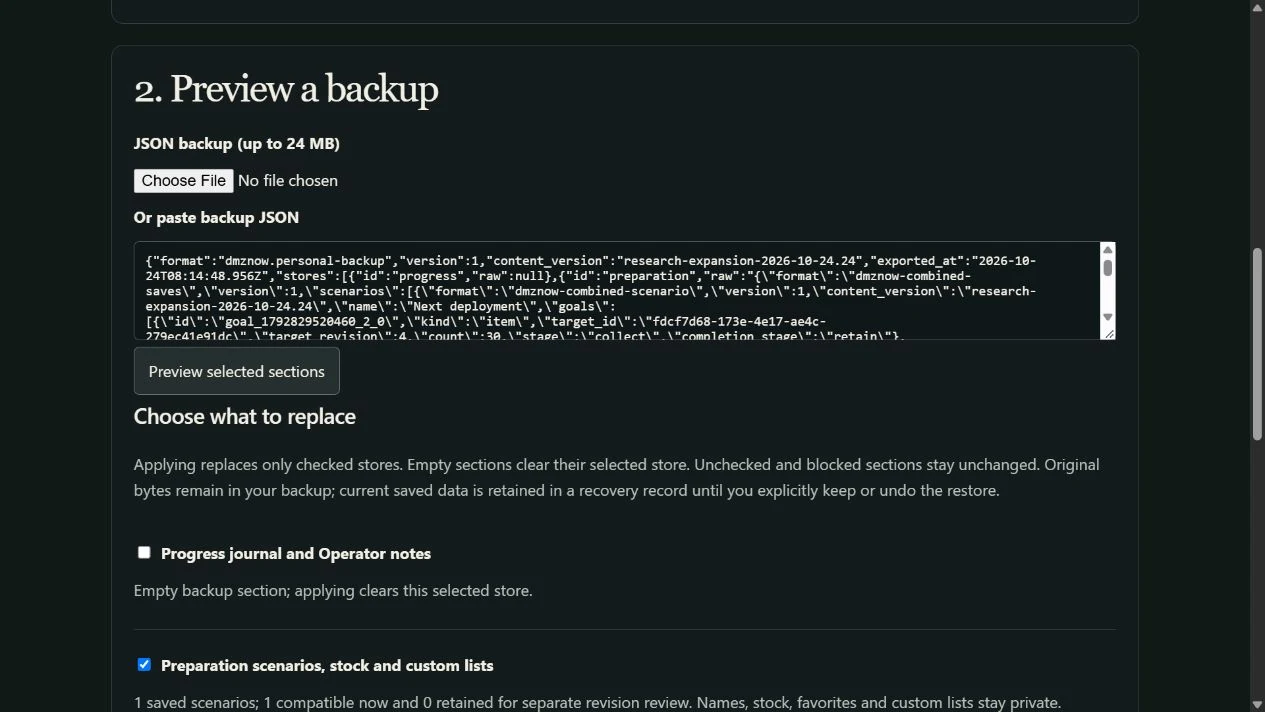
Choose your JSON backup file or paste its JSON, then Preview selected sections. Inspect each included section and select only the stores you intend to replace.
Look for: The page reports compatible, absent or invalid sections. Invalid or incompatible data is not silently treated as empty valid progress.
Cancel an unwanted preview
Use Cancel when the selected sections or source are wrong. Try a corrected backup in a new preview.
Look for: Cancellation leaves saved stores unchanged. A preview alone does not grant game rewards or merge unrelated personal histories.
Confirm a deliberate restore
Read the replacement warning and explicit confirmation before applying selected sections. Keep the recovery copy until you have inspected the restored tools.
Look for: Only selected supported stores are applied. A detailed checklist is queued for its own planner review rather than assumed valid merely because the outer backup parsed.
Inspect and recover
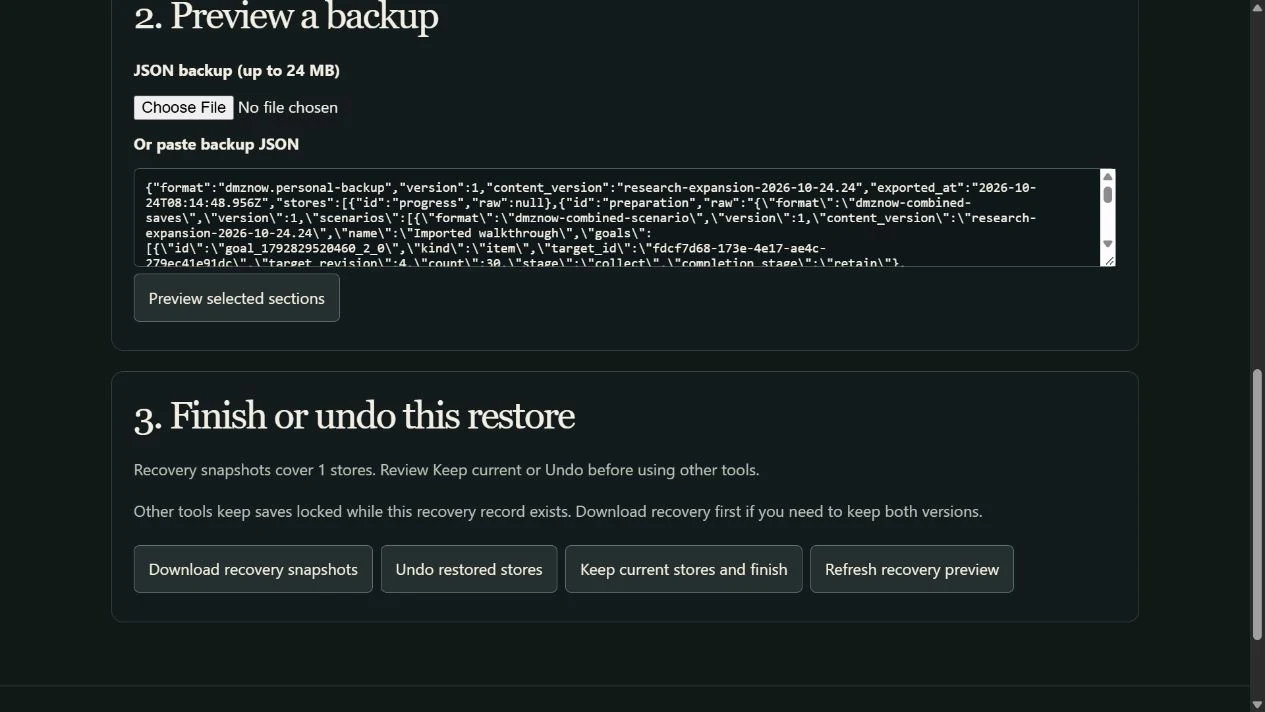
Open the restored personal tools and check their state. Review any queued detailed checklist in the planner. If the restore was wrong, use the available undo/recovery controls before discarding the recovery copy.
Look for: The restore provides recovery information. An undo that detects a newer conflicting write must be handled explicitly rather than overwriting it blindly.
Keep the scope clear
- This is local personal data portability, not game account synchronization, squad sharing or a game-state importer.
- Private backups contain more than public goal links. Never paste a private backup into a public share URL.
- A browser cannot guarantee permanent storage. Keep an external copy of important saved work and inspect it before replacing a device.
Change your mind or recover
- Cancel a preview to leave stores unchanged. Correct malformed JSON or choose a supported backup instead of clearing existing data.
- After applying, review the recovery panel. Keep the recovery copy until satisfied; if undo reports a conflict, preserve both versions and resolve it without discarding newer work.
- If the browser download fails, do not assume a backup exists. Check that an actual file was saved before removing data or switching devices.
See the actual controls
Demonstration data in the DmzNow website. Open an image for the full view; the written instructions above contain the same steps.