At a glance
- Category
- Tool Walkthrough
Get from a name or equipment question to the complete reference without treating missing values as zero.
Follow the steps
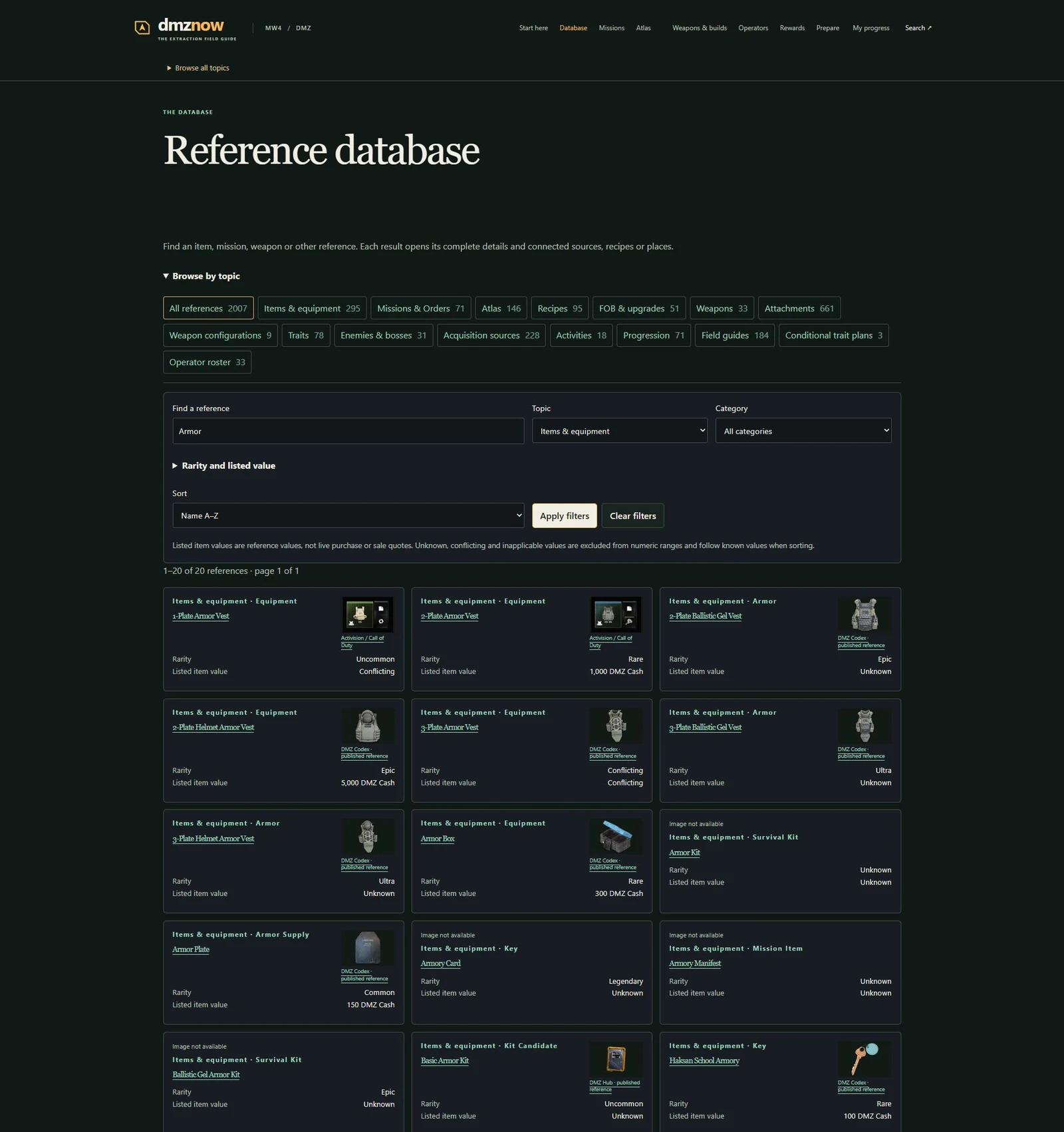
Start with the whole catalog
Open Database in the main navigation. Browse a topic link or use the Topic control to narrow the query. Topic counts are reference records, not a claim that every record is a distinct game item.
Look for: The heading reads Reference database. The result status shows the current range, total and page.
Apply a name and category
Enter Armor in Find a reference, choose Items & equipment under Topic and press Apply filters. Category can narrow this further; clear the name if you want every record in that category.
Look for: The result URL records the query and topic. Each card links to its complete reference; an alias can also match.
Separate unknowns and conflicts
Open Rarity and listed value. Choose Conflicting in Listed value state and apply. Try Unknown separately. To use a numeric range, enter Minimum or Maximum DMZ Cash.
Look for: Conflicting and unknown readings stay distinct. Numeric ranges exclude unknown, conflicting and inapplicable values; they do not substitute zero.
Sort and inspect a result
Use Sort for name, rarity or listed item value, then apply. Open a card and read its source-qualified values, possible acquisition methods and connected pages.
Look for: Known listed values can be sorted numerically. Unknown or conflicting values follow known values. A credited thumbnail is recognition context, not proof of the current loot roll.
Move through all results
Clear filters and use Reference pages to reach later pages. Browser Back and Forward restore the previous URL state. Copy the current URL when you want someone else to open the same filtered view.
Look for: The result range changes with the page. A copied query does not send personal inventory or progress.
Use the static fallback
Without JavaScript, follow topic links and numbered static pages. Interactive query and sort controls require JavaScript; the complete static cards still link to details.
Look for: The no-JavaScript notice explains that URL filters are not applied. Static pagination remains available; do not read an unfiltered page as a filtered result.
Keep the scope clear
- Listed item value is not a current purchase or sale quote. Read conflicting source contexts on the item page.
- Image not available is an honest gap. A missing thumbnail does not mean the reference is absent.
- The database matches names and aliases. Use Search when you need terms inside objectives or descriptions.
Change your mind or recover
- Clear filters resets the active query, category, rarity, value and sort controls. Browser Back returns to an earlier filtered URL.
- If a combination has no matches, remove one condition or use the full-text Search page; do not conclude that a whole topic is unavailable.
See the actual controls
Demonstration data in the DmzNow website. Open an image for the full view; the written instructions above contain the same steps.